Thursday, October 31, 2013

Tips to interact with Databases efficiently using Talend

TIPS to interact efficiently with Databases using Talend

  1. In the Database Output component choose the "Enable Parallel Execution" (Last option in the Advance Settings)
  2. Use a reasonable batch-size (The default is 10,000 rows)
  3. Use the ELT components and Bulk Execute components where ever applicable.
  4. Choose only the columns you are interested in your data-sets. Avoid using select * from in your queries.
  5. Choose only those rows that you are interested in by limiting them with a WHERE clause
  6. Do not perform blocking operations like "Aggregate/Sorting" on the Talend. The DB is more efficient in doing these operations. For Aggregation/Sorting, the entire dataset has to be loaded before the operation is performed. So if the data-set is huge, it could choke the memory and cpu.
  7. Understand the "Commit" options. Commiting frequently has pros and cons


    •  Example - You have 20000 rows to be written to the database. Lets assume that we are commiting for every 5000 rows. If there is any error after the second commit (meaning after 5000 + 5000 = 10000 rows), our database will be in a state where rows have been written partially. Unless your code is re-runnable, you could end up in a situation where you need to first clean up before you start again..
    • Commiting frequently avoids huge log files on the database.
    • Commiting only at the end could have an impact on the memory usage if it is a large batch of rows that you are waiting to commit.

How to import an external library to Talend Jobs?

You can import an external library into Talend Jobs in two ways.

  1. using tLibraryLoad component (Available to only specific job using this component)
  2. Adding the external library to the Talend's Routine Library. (Available to all the jobs)

Examples follow.
Adding the external library to the Talend's Routine Library. (Available to all the jobs)


Adding the external library to the Talend's Routine Library

Happy Talending!
Praveena

Parallelization in Talend

You can achieve Parallelization in Talend in 2 ways.

  1. Running SubJobs in Parallel by using the Multi-threaded Executions
    • Enabling Mulit-threaded Execution is hidden in the Jobs view of the studio.
    • Also note that enabling multi-thread on a single processor could hurt the performance
  2. Using the tParallelize component of Talend.
    • The tParallelize component is an Orchestration component.
Screenshots of a simple sample Job running as a single thread, multi-thread and with tParallize are shown below.

 Job running as a single thread

Job running as a single thread
Using Multi-threaded Execution


Multi-threaded Execution


Using the tParallelize component of Talend
Using TParallelize component of Talend


Monday, October 21, 2013

DataViewer - a useful feature to preview data

Many a times, we might be maintaining others code and would like to see what a component is retrieving. The DataViewer is a gem hidden in the context menu that could be quite useful to preview data.

Right Click on the DbComponent will give us the DataViewer for previewing data. 

Happy Talending!
Praveena

Friday, October 18, 2013

Talend tWarn component Gotcha


tWarn component could provide useful information like the project name, Job name, and any columns of data in addition to the message to be displayed. This kind of information can be useful to raise an alert that the Job  is running successfully but with a condition that might indicate an issue. This is can be very useful for troubleshooting or maintenance purposes.

The big GOTCHA here is that without the  tLogCatcher component, the warning message is available as context data but does not automatically appear in the console. So if you include tWarns in your jobs, be sure to include tlogCatchers to catch the warning messages.

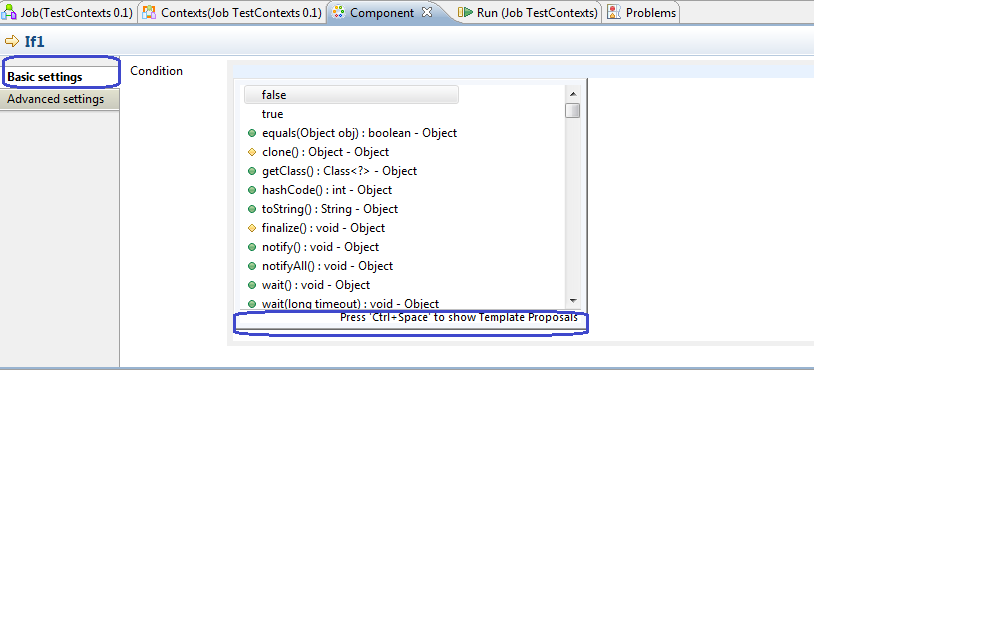
PS - CTRL + SPACE is for template proposals in Talend. So whenever you want to see what context variables are available for you to choose or any globalMap variables, try CTRL+SPACE.


Wednesday, October 16, 2013

Steps to install/upgrade Talend license

The following are the steps to upgrade the Talend license on a Talend Administration Console (TAC) server:

  1.   Copy the licence file to /usr/local/talend-cmdline/
  2.    Restart the Commandline application:  (kill the running process and then run:   “nohup ./commandline.sh &”)
  3. Open TAC and log in.  

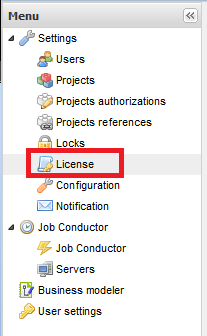
  4. Click on “License” in the left pane:


Click Browse in the center pane:
   Locate and select the “license” file

 Click “Upload”:

The license should now be installed and the TAC will no longer display the “License will expire” message.

Happy Talending!

Friday, October 14, 2011

How to execute multiple sql statements in Talend


Firstly, Why would you want to execute multiple SQL statements in a single Component?
  1. Ease of use and cleaner code. If all you are doing is a series of SQL statements, then you might be better off with a single SQLRow component than a train of Talend components making your job look messy. For Ex - If you are truncating the staging tables in a Data Warehouse environment, then a single Talend component is convenient
  2. It might be better if you create a store procedure for this purpose but sometimes, you might not have create-store-procedure-privilege on your schema. Then executing a series of SQL statements in SQLRow component by changing the "Additional JDBC parameters" setting as shown above might be the right thing to do.
We need to supply additional JDBC parameters because MYSQL jdbc driver, by default permits running only one query per jdbc connection and terminates after finding the first semi-colon (;). Above is a screenshot of how to modify the jdbc parameters.

Happy Talending!
-Praveena